You already write in Claude Code. The shipping note, the release summary, the "here is what changed" paragraph: it is sitting in the terminal when the work is done. This walkthrough gets that paragraph onto X and LinkedIn without leaving the session, with a receipt before anything is sent and a receipt after.
Two minutes is the honest number if your networks are already connected. Connecting them the first time adds the OAuth clicks, about a minute each.
What you need
- A Posteora account. Free, no card, 10 posts a month, and the assistant connection is included on the free plan.
- X and LinkedIn connected on the Connections page of the Studio. One button each; Posteora's own developer apps are registered and approved, so there is nothing to create on developer.x.com or in the LinkedIn developer portal.
- Claude Code with the
claude mcpcommand available.
If you want the same setup for the desktop app or ChatGPT instead, the Claude and ChatGPT pages have the paste-ready messages. This post is the Claude Code route.
Step 1: add the server (one command)
In any terminal:
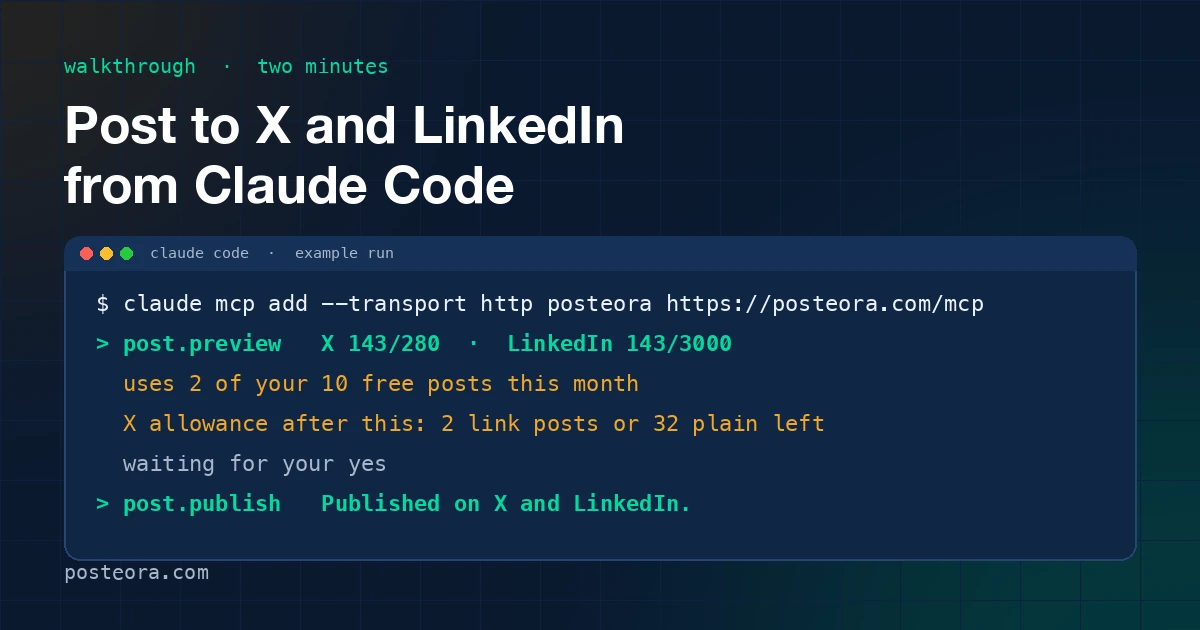
claude mcp add --transport http posteora https://posteora.com/mcp
That registers a remote MCP server named posteora. Nothing is installed, nothing runs on your machine; Claude Code talks to the server over HTTP.
Step 2: sign in once
Inside Claude Code type /mcp, pick posteora, choose Authenticate, and click Allow in the browser tab that opens. That is an OAuth sign-in to your Posteora account; no API key is pasted into the chat.
Then name the connection with connection.label so you can tell it apart from other projects on your AI Assistants page:
Call connection.label with alias "launchday"
Use the project folder name. It is free and you only do it once per project.
Step 3: save the rules in CLAUDE.md
Paste this into the project's CLAUDE.md so every future session follows it without being told:
Posteora rules for this project:
- Call accounts.list first, then post.preview before any post.publish or post.schedule.
- Read me the receipt and wait for my yes.
- At most 2 X posts a day. No links in X post text; put the link in a reply to the post.
- When I attach an image or video, upload it yourself with media.upload (or POST
  https://posteora.com/mcp/media with the same Authorization header) and pass the
  media_id in media_ids. Never ask me for a public link.
The setup page copies the full version of these rules to the clipboard, including the media limits (images up to 5 MB, video up to 100 MB).
Step 4: say what to post
Post this to X and LinkedIn: Shipped the onboarding rewrite today: three screens,
one question each, and a first post in under five minutes. Notes in the reply.
Claude Code calls accounts.list (free; it lists your connected networks and their token health), then post.preview. The preview is free and creates nothing. What comes back is a receipt, and the server tells the assistant to read it to you and wait.
What the preview receipt shows
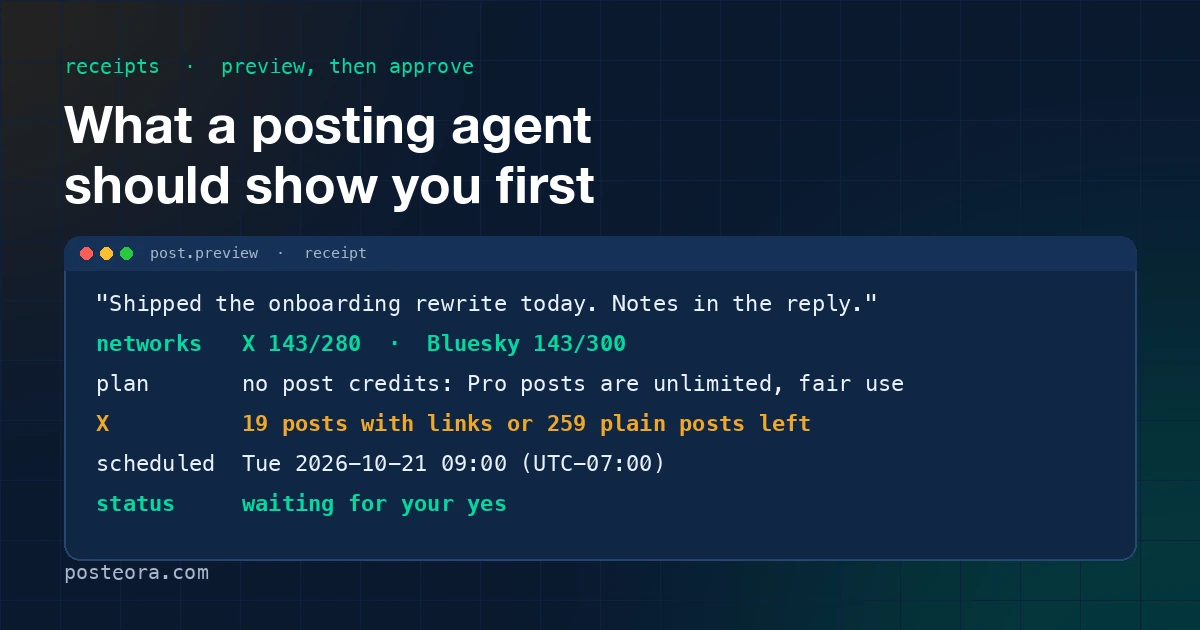
On a free account the receipt reads like this:
Uses 2 of your 10 free posts this month (0 sent). X: 143/280 chars; LinkedIn:
143/3000 chars. X allowance after this: 2 posts with links or 32 plain posts left.
Four things are in that one paragraph, and they are the four things worth checking:
- What the post draws on. One post to two networks is two of your ten free posts, because Posteora counts one per network. On Pro the line says "No post credits: Pro posts are unlimited, fair use."
- Fit per network. Character count against each network's limit. A post that does not fit is refused here, not at send time.
- The X allowance. X is the only network that charges Posteora per post, so every X send draws on a monthly allowance shown as posts, never dollars. Pro includes about 20 posts with links or 260 plain posts a month.
- Whether it can go out as previewed. If something blocks it, the receipt ends with "Cannot send as previewed:" and the reason. The most common one on the free plan: free accounts cannot put links in X posts. Take the link out, or put it in a reply on Pro.
The payload also carries a guard field with signal warnings (an engagement-bait opener, a bare domain X will auto-link) and a next field that says, in words, what the assistant should do: show you the text and the receipt, then wait for your yes.
Step 5: say yes
Yes, post it.
Claude Code calls post.publish with the same text and targets and an idempotency_key. The key is required for publishing: if the connection drops and the call is retried, the server returns the stored result instead of posting twice. You do not have to think about it; the assistant generates it.
What the publish receipt shows
Published on X and LinkedIn. X allowance: 2 posts with links or 32 plain posts left.
Under the sentence are the per-network results: the live URL on each network and a record_id you can pass to post.status later. A network that refused the post gets its own sentence ("Failed on LinkedIn: connection expired, reconnect your account") so a failure is never read back to you as a success. The other networks still go out.
Adding the link afterwards (Pro)
X ranks posts with links lower and charges about 13 times more for them, so the usual run is a plain post now and the link a few minutes later as a reply under it:
In five minutes, reply to that X post with the link https://example.com/notes
The assistant calls post.schedule with reply_to set to the first post's URL. The schedule receipt names the time in your offset ("Queued for Mon 2026-10-19 14:35 (UTC-07:00) on X") and links to the Studio calendar, where the queued post sits with everything else. Free accounts cannot post links on X at all, so this step is a Pro one; the preview tells you that before you try.
Scheduling instead of posting now
Replace "post" with "schedule for Tuesday 9am" and the assistant calls post.schedule instead of post.publish. The horizon is 14 days ahead on Free and 90 on Pro, with 10 and 300 posts queued at a time. A third X post on the same local day is refused on purpose; two spaced hours apart is the whole point.
When it does not work
accounts.listcomes back empty. You have not connected a network yet. The response includes the Connections URL; connect, then ask again.- A network shows
needs_reconnect. The daily token check found the grant expired or revoked. Reconnect on the website; a queued post that would hit it gets one email in advance. /mcpshows the server disconnected. Authenticate again. If you regenerated your API key on the Account page, every client signs out by design.- The assistant asks for a public image URL. It skipped the media rule. Point it at the CLAUDE.md block above;
media.uploadtakes the file straight from disk.
What it costs
Free: 10 posts a month, 5 AI credits topped up every day, every network, the assistant included, no card. Pro: $19 a month, or $15 a month billed annually, with unlimited posts under fair use and the X allowance above. The full table is on the pricing page, and everything that changes lands on the changelog.
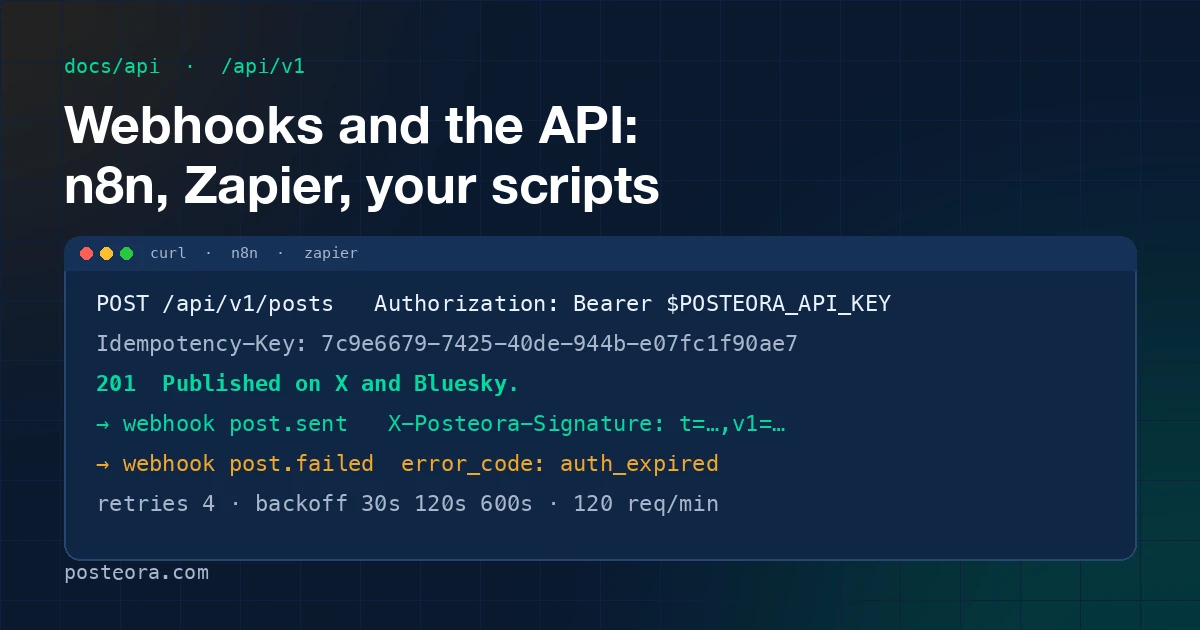
If you would rather drive the same thing from a script or an n8n flow, the same functions exist as plain HTTP: Webhooks and the API.